
Fixing QBO 1099 mapping starts with one report and ends with one preview screen. Run the 1099 Transaction Detail to see where payments currently sit, create or reassign those payments to separate 1099-NEC and 1099-MISC expense accounts, then map those accounts inside Prepare 1099s before you validate totals and file. Two things trip people up every year: excluded processor payments and trying to force one account into two form boxes. QuickBooks Online supports e-filing once your mapping is clean.
TL;DR:
- Most mapping errors stem from splitting contractor payments across multiple accounts or using a single account for both NEC and MISC, causing discrepancies during filing.
- Proper account creation and clear naming, such as “1099-NEC: Contract Labor,” streamline the mapping process and prevent costly remapping later.
- Running the 1099 Transaction Detail and Summary reports before preparing your forms helps verify that all payments are correctly assigned and totals are accurate.
- Payments made through credit cards or third-party processors like PayPal are automatically excluded from 1099 totals to avoid duplicate reporting with the IRS.
- Hiring a professional bookkeeping team can help correct complex misclassifications or prior-year errors, ensuring compliance and avoiding IRS penalties.
Table of Contents
- How Do You Map 1099 Accounts in QBO?
- How Do You Create a 1099 Expense Account in QuickBooks?
- How Do You Map Accounts in Prepare 1099s?
- Why Is a Contractor Missing or a Total Wrong on My 1099s?
- What Reports Confirm Your 1099 Mapping Is Correct?
- Which Payments Does QBO Leave Off Your 1099 Totals?
- The Gap ProAdvisors' Take: When Mapping Becomes a Job for a Pro
- Get Your 1099 Mapping Fixed Before the Deadline Crunch
- Where This Guidance Comes From
- Sources
- FAQ
How Do You Map 1099 Accounts in QBO?
Think of this as a five-step sequence. Skip a step and you'll find yourself reopening the Prepare 1099s wizard three times before filing.
- Run the report. Open 1099 Transaction Detail or 1099 Summary to see which accounts your contractor payments actually hit. This tells you what needs to move before it tells you what needs mapping.
- Separate NEC from MISC. Decide which payments belong on a 1099-NEC (contractor services) versus a 1099-MISC (rents, prizes, legal settlements). If one account currently holds both, you'll need a second account.
- Move the payments. Edit the original transactions to point to the correct account, or use a journal entry if you're moving a batch.
- Map and preview. Open Prepare 1099s, select the right accounts for each box, then preview every contractor's form before submitting.
- Choose your filing method. QuickBooks Online offers integrated e-filing for federal and participating state forms, or you can print and mail. E-filing only works cleanly once your 1099-NEC vs 1099-MISC accounts are mapped correctly.
Each step depends on the one before it. Mapping accounts before you've separated NEC from MISC just means remapping later.
How Do You Create a 1099 Expense Account in QuickBooks?
Go to All apps or Accounting → Chart of Accounts → New. From there, choose an Account Type of Expense, Other Expense, or Cost of Goods Sold, depending on how the contractor cost behaves in your books. Then pick a Detail Type that matches, like "Contractor Payments" or "Legal & Professional Fees."
Naming matters more than most bookkeepers assume. A consistent prefix saves real time when you get to the mapping screen months later.
- Name accounts something like "1099-NEC: Contract Labor" and "1099-MISC: Rent Expense" rather than generic labels like "Outside Services."
- Use the Description field to note which box the account maps to, so anyone reviewing the books later doesn't have to guess.
- Create a separate account for each 1099-NEC vs 1099-MISC category you actually use. QuickBooks does not allow the same account to feed both forms during filing, so consolidating them now just creates work later.
- If you pay both contractors and vendors for rent, split those into distinct accounts even though they might feel similar.
Pro Tip: Small bookkeeping teams that adopt a strict "1099-NEC:" or "1099-MISC:" naming prefix report finding the right account in seconds during Prepare 1099s, instead of scrolling through a chart of accounts that mixes contractor pay with office supplies.
Separating accounts isn't busywork. It's the only way QuickBooks can correctly split your NEC and MISC totals when it generates each contractor's form.
How Do You Map Accounts in Prepare 1099s?
Start from Expenses or Payroll → Contractors, then click Prepare 1099s. The wizard walks through a fixed sequence, and each step feeds the next.
- Confirm company info. Your legal business name, TIN, and address need to match what's on file with the IRS, since this prints directly on every form.
- Select accounts. For each box (nonemployee compensation, rents, etc.), choose the account or accounts that should feed it. This is the actual mapping step.
- Track contractors. QuickBooks pulls in anyone marked "Tracked for 1099" during vendor setup, along with their year-to-date totals.
- Preview each 1099. Click into individual contractor forms before submitting. The preview screen shows mapped box totals and flags amounts QuickBooks excluded, usually because they came through a third-party processor.
- File. Once totals check out, e-file through QuickBooks or print and mail.
If a total looks off on the preview screen, go back to the account selection step and check whether a payment landed in the wrong bucket. You can change account mapping at any point before you submit, and QuickBooks recalculates the preview instantly. This preview step is worth treating as non-negotiable. It's the single most reliable check before you file, because it shows exactly what will print on the form, not just what your general ledger says.
Why Is a Contractor Missing or a Total Wrong on My 1099s?
Most mapping problems fall into three buckets, and each has a specific fix rather than a generic "try again."
A contractor doesn't show up at all. Check whether they're marked "Tracked for 1099" in their vendor profile. If they were added mid-year or paid through a payment method QuickBooks excludes by default, they won't appear even if you paid them thousands of dollars.
Totals look wrong on the preview. Pull the 1099 Transaction Detail report and trace individual transactions. Payments sometimes post to a general "Contract Labor" account instead of the mapped one. Edit the transaction directly, or move a batch with a journal entry if the volume is high.
- Editing each payment individually preserves the original payment method and audit trail, which matters if you're ever asked to substantiate a 1099.
- Journal entries move faster but obscure that metadata. If you use one, add a clear memo and keep a supporting export.
One account is trying to feed two forms. This is the most common structural error. Create a second account, split the historical amounts, and remap. Trying to force NEC and MISC totals through a single account is the root cause of most year-end mapping headaches.
Pro Tip: Before changing any account tied to a prior filed year, print your existing 1099 Transaction Detail report or export a backup. QuickBooks Online updates historical reports when you remap accounts, so last year's report can shift even though last year's form was already filed.
What Reports Confirm Your 1099 Mapping Is Correct?
Three reports do the real validation work, and you should run them in this order before you file anything.
- 1099 Transaction Detail. Set the date range to the full calendar year and confirm every payment sits in the account you expect. This is where mismapped transactions show up first.
- 1099 Summary. This rolls totals up by vendor and by box, giving you a fast sanity check against what you expect each contractor's total to be.
- 1099 Contractor Balance Detail or Balance Summary. Use this when a total looks off and you need to see which specific invoices or payments make up that number.
- Preview inside Prepare 1099s. Reconcile what the wizard shows against your report totals. Any gap between the two means something is still mismapped.
Before submitting, confirm your company TIN and address, each contractor's TIN, and that box totals on the preview match your 1099 Summary line for line. A contractor tracking setup that's incomplete is the most common reason these numbers don't match on the first pass.
Which Payments Does QBO Leave Off Your 1099 Totals?
QuickBooks Online excludes payments made by credit card, debit card, or through processors like PayPal from your 1099 totals. This isn't a bug. Those processors are required to report the same payments to the IRS themselves, so including them on your 1099 would report the income twice.
- Card and third-party processor payments are excluded automatically; you'll see them flagged on the Prepare 1099s preview screen.
- Reconcile these against your processor's own year-end reporting rather than adding them back into QuickBooks manually.
- Leave them excluded in almost every case. The exception is verifying the processor actually issued its own reporting form, not adjusting your books to match.
Say you paid a contractor $4,000 by check and $2,000 through PayPal. Your 1099-NEC should only reflect the $4,000, because PayPal handles reporting on its side of that $2,000.
The Gap ProAdvisors' Take: When Mapping Becomes a Job for a Pro
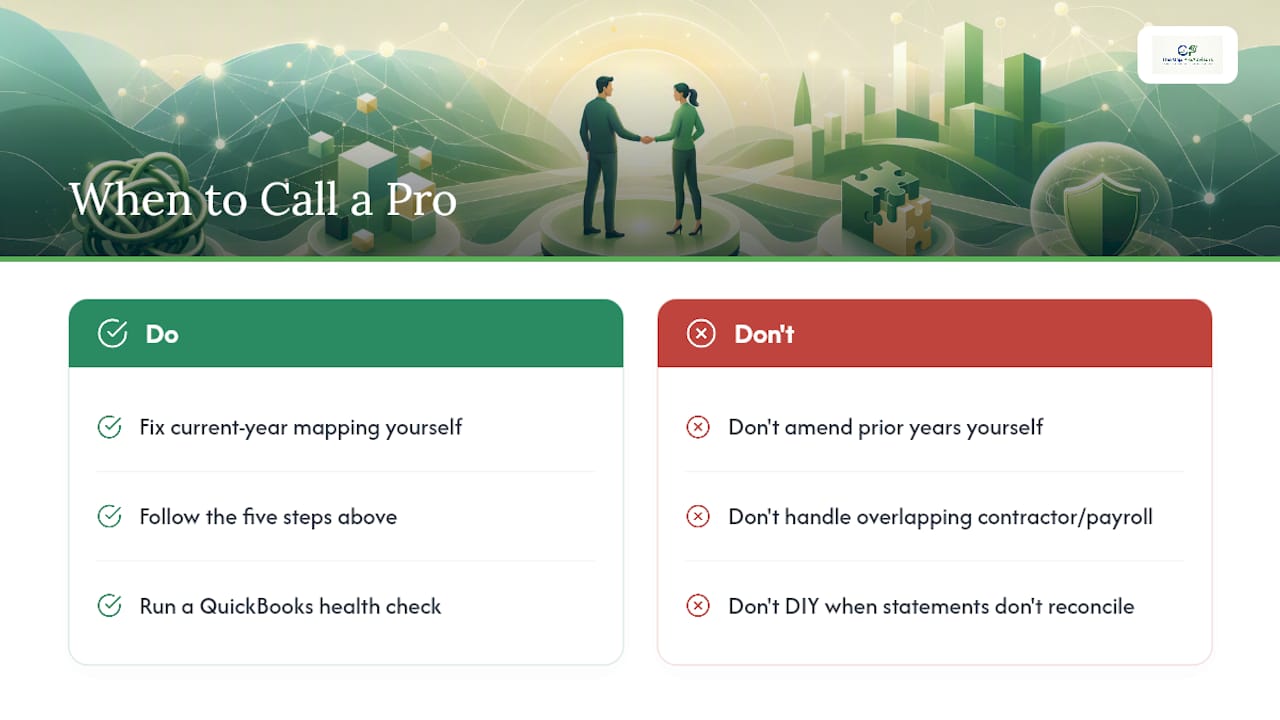
Most mapping problems we see in client files aren't complicated on their own. They're just stacked. A contractor added in October instead of January. A rent payment sitting in the same account as contract labor. A business paying one contractor through three different methods across the year. Any one of those is a five-minute fix. All three together, across a dozen vendors, is how a Saturday disappears.
Here's the line we'd draw: fix current-year mapping issues yourself using the steps above. Call in help when you're amending a prior filed year, when contractor and payroll classifications overlap for the same person, or when processor statements don't reconcile cleanly with your books. Those situations carry real filing risk, and a QuickBooks health check catches them before the IRS does.
— Angela
Get Your 1099 Mapping Fixed Before the Deadline Crunch
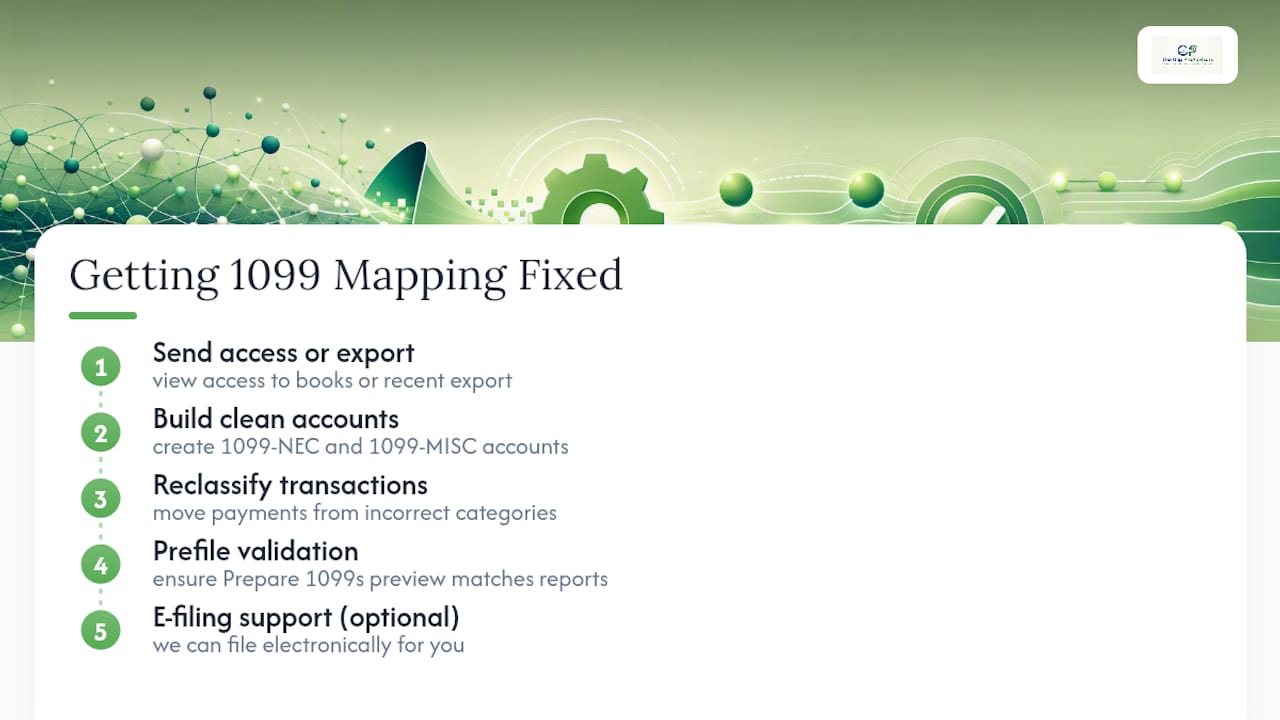
If your chart of accounts has contractor payments scattered across half a dozen categories, the fastest fix isn't another hour in QuickBooks. It's handing the file to someone who does this every week. Mygappro's remote bookkeeping team builds out clean 1099-NEC and 1099-MISC accounts, reclassifies the transactions that landed in the wrong place, and runs prefile validation so your Prepare 1099s preview matches your reports before you ever click submit.
This work fits best for small businesses juggling several contractors, mixed payment methods, or a QuickBooks file that's drifted out of order over the year. First contact is simple: send us view access to your books or a recent export, and we'll flag exactly what needs to move before your deadline. If e-filing support is part of what you need, we handle that too.
Start with Mygappro's remote bookkeeping services and get your 1099 accounts mapped correctly the first time, not the third.
Where This Guidance Comes From
This guide draws on QuickBooks' own support documentation and IRS filing instructions rather than general assumptions about how the software behaves.
- Modify your chart of accounts for 1099-MISC and 1099-NEC filing covers account separation and remapping mechanics.
- Create and file 1099s with QuickBooks Online explains the Prepare 1099s workflow and processor exclusions.
- Instructions for Forms 1099-MISC and 1099-NEC set the IRS filing thresholds and box definitions that mapping decisions have to follow.
Sources
- Modify your chart of accounts for your 1099-MISC and 1099-NEC filing — QuickBooks Support
- Create and file 1099s with QuickBooks Online — QuickBooks Support
- Instructions for Forms 1099-MISC and 1099-NEC — IRS
FAQ
How Do I Map 1099 Accounts in QuickBooks Desktop?
The process mirrors QuickBooks Online: go to Vendors → Print/E-file 1099s → 1099 Wizard, then map each expense account to the correct box on the NEC or MISC form and run the summary report to confirm totals before filing.
Why Do Some Accountants Avoid QuickBooks Online for 1099 Work?
Some accountants prefer QuickBooks Desktop because it offers more granular account mapping controls and easier prior-year backup restoration, while QuickBooks Online updates historical reports automatically when you remap accounts.
How Do I Do Tax Mapping in QuickBooks Online?
Tax mapping in QBO means assigning each expense account to a 1099 box inside Prepare 1099s, which you reach through Expenses → Contractors → Prepare 1099s, after running the 1099 Transaction Detail report to confirm which accounts hold contractor payments.
What Does "Mapping" Mean in QuickBooks?
Mapping is the process of telling QuickBooks which chart-of-accounts category corresponds to which reporting box, whether that's a 1099 box, a sales tax category, or a payroll expense line.
Can Mygappro Fix Existing 1099 Mapping Errors in My QuickBooks File?
Yes. Mygappro's QuickBooks cleanup service reclassifies mismapped transactions, builds out separate NEC and MISC accounts, and validates totals against your reports before you file.