
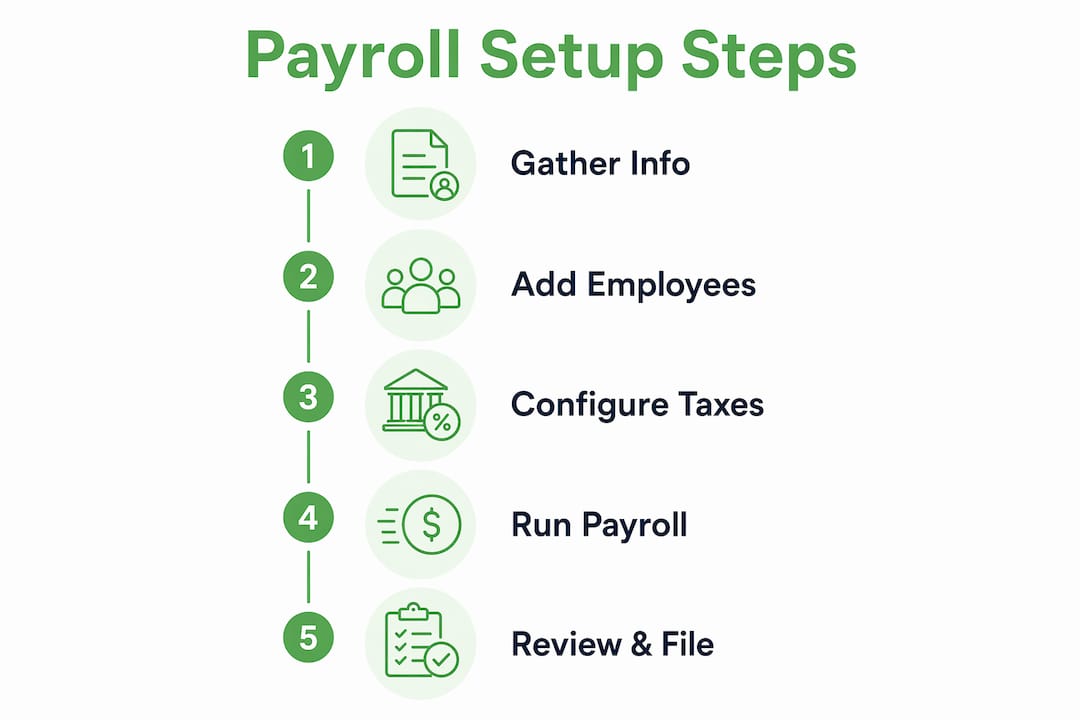
Getting payroll right in QuickBooks comes down to five core steps: gather your business and employee information, add your employees with accurate pay and tax details, configure federal and state payroll taxes, connect your bank account, and run your first payroll. Whether you use QuickBooks Desktop or QuickBooks Online, the process is the same in principle, though the activation steps differ by platform. Skipping or rushing any step creates compliance risk, and fixing errors after the fact takes far more time than doing it correctly upfront.
Here is what a complete QuickBooks payroll setup covers:
- Business information: Federal Employer Identification Number (EIN), state and local tax IDs, physical business address, and banking details
- Employee information: W-4 forms, hire dates, pay rates, benefits, deductions, and direct deposit data
- Tax configuration: Federal, state, and local deposit frequencies, unemployment rates, and any family leave contributions
- Bank connection: Linking your payroll bank account for direct deposit and automated tax payments
- First payroll run: Reviewing all settings, confirming withholdings, and processing your first pay cycle
What information do you need before starting QuickBooks payroll setup?
Preparation is the single biggest factor in a smooth setup. Businesses that gather every document before opening QuickBooks avoid the frustrating back-and-forth of stopping mid-setup to hunt down a tax ID or a missing W-4.
Business documents to collect:
- Federal EIN (from your IRS confirmation letter)
- State withholding and unemployment account numbers from the Georgia Department of Revenue and the Georgia Department of Labor
- Local tax account numbers, if your county or city levies a local payroll tax
- Federal, state, and local tax deposit frequencies (the IRS and state agencies assign these based on your payroll size)
- Your business bank account routing and account numbers, plus the principal officer's name, home address, Social Security number, and birthdate
Employee documents to collect:
- Completed Form W-4 for each employee, plus any Georgia state withholding equivalent
- Hire date and birth date
- Pay rate (hourly or salary)
- Paycheck deductions: health insurance, retirement contributions, wage garnishments
- Bank account or pay card information for direct deposit
- Accrued sick, vacation, or paid time off (PTO) balances
If you are setting up payroll mid-year, you also need to pay stubs or payroll reports for every employee paid so far this calendar year, plus tax liability reports and receipts for any payroll tax payments already made. Payroll setup requires this prior payroll history to generate accurate year-to-date figures for W-2s and quarterly filings.
Pro Tip: Always use a physical business address, not a PO Box. QuickBooks uses your work location to determine your state and local tax obligations, and a PO Box can trigger incorrect withholding assignments.
How do you set up employees in QuickBooks payroll?
Once your documents are ready, adding employees is straightforward. In QuickBooks Online, go to the Payroll tab, select Employees, then Add an employee. In QuickBooks Desktop, navigate to Employees, then Payroll Setup, and follow the on-screen interview.
For each employee, you will enter:
- Personal details: Full legal name, address, Social Security number, hire date, and birth date
- Pay information: Hourly rate or annual salary, pay schedule (weekly, biweekly, semimonthly, or monthly), and overtime eligibility
- Time off policies: Sick and vacation accrual rates, PTO balances, and carryover rules
- Deductions and benefits: Health insurance premiums, 401(k) or SIMPLE IRA contributions, garnishments, and any other pre-tax or post-tax deductions
- Tax withholdings: Enter the W-4 data directly, including filing status, number of dependents, and any additional withholding amounts
- Direct deposit: Bank account or pay card details for each employee who opts in
After adding employees, you can invite them to QuickBooks Workforce, where they can view their own pay stubs, PTO balances, and W-2s online. This reduces the administrative back-and-forth around paycheck questions. For QuickBooks Desktop users, activating payroll first requires entering a 16-digit service key and waiting for the updated tax table to download before the employee setup interview becomes available.
How do you configure payroll taxes, including multi-state setups?

Tax configuration is where most setup errors happen, and errors here carry real financial consequences. In QuickBooks Online, tax setup lives under Payroll Settings. In QuickBooks Desktop, it is part of the Payroll Setup interview under the taxes section.
Federal tax setup requires:
- Your EIN
- Your federal deposit frequency (monthly or semiweekly, as assigned by the IRS)
- Confirmation that QuickBooks will handle 941 filings and federal tax deposits on your behalf, if you choose automation
State tax setup for Georgia requires:
- Georgia withholding account number (from the Georgia Department of Revenue)
- Georgia unemployment account number (from the Georgia Department of Labor)
- State deposit frequency
- Georgia unemployment tax rate, state disability contributions if applicable, and any surcharges
Multi-state payroll adds complexity. If you have employees working in more than one state, QuickBooks supports the configuration, but you must register with each state tax agency separately and enter each state's deposit frequencies and tax rates manually. QuickBooks does not do this registration for you. For Georgia businesses with remote employees in other states, this means obtaining a withholding account number in each employee's work state before you can configure that state's taxes in QuickBooks.
Compliance note: Automation reduces effort, but employers remain legally responsible for payroll tax accuracy. If the tax IDs or deposit frequencies you enter are wrong, penalties fall on your business, not on QuickBooks.
How do Auto Payroll and manual payroll work in QuickBooks?
QuickBooks Online offers Auto Payroll, which automatically calculates and submits payroll for salaried employees on a set schedule. You can enable it under Payroll Settings once your employees, taxes, and bank account are fully configured. It works best for employees with consistent pay and no variable hours.
For hourly employees, bonuses, or commission-based pay, you run payroll manually. Go to the Payroll tab, select Run Payroll, review each employee's hours and pay, confirm deductions, and submit. QuickBooks calculates the taxes automatically based on your configured settings.
Connecting your bank account is required for both direct deposit and automated tax payments. You can link it through Plaid for instant connection, or enter routing and account numbers manually. Bank verification can take 1–3 days when manual validation is required, so connect your account early in the setup process rather than at the last step.
Checklist before running your first payroll:
- All employees added with complete W-4 data and pay rates
- Federal EIN and Georgia state tax IDs entered and verified
- Deposit frequencies confirmed with the IRS and Georgia Department of Revenue
- Bank account connected and verified
- Prior payroll history entered if you are mid-year
- Pay schedule confirmed and first pay date selected
Pro Tip: If you signed up for QuickBooks Online Payroll Core or Premium within the past 30 days and have not yet run your first payroll, you qualify for a guided setup call with an Intuit payroll expert. They will walk through your business info, employee setup, tax configuration, and bank connection with you live.
What are the most common QuickBooks payroll setup mistakes?
The most costly mistake in a mid-year setup is entering incomplete prior payroll history. Missing prior paycheck data causes inaccurate W-2s and tax filings that require complex corrections later. Gather every pay stub, payroll journal, and quarterly tax form (Form 941, Georgia state unemployment filings) before you enter a single number in QuickBooks.
Other frequent errors include entering the wrong deposit frequency, using a PO Box instead of a physical address, and skipping state tax ID registration before starting setup. Each of these creates downstream compliance problems that are harder to fix than they are to prevent.
From a practical standpoint, the businesses that set up payroll most cleanly are the ones that treat the documentation phase as its own project, separate from the QuickBooks configuration phase. Completing all tax registration and payroll documentation before starting QuickBooks input greatly reduces setup errors, per Intuit's own expert guidance.
If you would rather have a professional handle the configuration, Mygappro offers payroll and bookkeeping services for small business owners across Georgia, including QuickBooks Online setup, ongoing payroll processing, and tax compliance support. For Atlanta-area businesses, the team provides local QuickBooks payroll support tailored to Georgia's specific tax requirements.

Ready to get payroll off your plate entirely? Mygappro handles setup, processing, and compliance so you can focus on running your business.
Key Takeaways
A correct QuickBooks payroll setup requires complete documentation, accurate tax IDs, and verified bank details before you process a single paycheck.
| Point | Details |
|---|---|
| Gather documents first | Collect your EIN, state tax IDs, W-4s, and bank details before opening QuickBooks setup. |
| Physical address matters | Use a physical business address, not a PO Box, so QuickBooks assigns the correct state and local taxes. |
| Mid-year history is critical | Missing prior payroll data causes W-2 errors that require complex corrections to fix. |
| Multi-state requires manual registration | You must register with each state agency separately before configuring that state's taxes in QuickBooks. |
| Automation does not remove liability | Even with Auto Payroll enabled, your business remains legally responsible for the accuracy of all tax inputs. |