
To complete a QuickBooks bank reconciliation, open the Reconcile tool in QuickBooks Online, enter your statement's ending date and ending balance, then check off transactions until the Difference reads $0.00. Once it does, select Finish and you're done. QuickBooks recommends doing this every month. Its AI Powered Reconciliation feature can now read an uploaded statement and fill in those fields for you.
Before you start, confirm three things:
- Your bank or credit card statement is in hand, with the ending date and balance visible.
- Every transaction from that statement period is already entered in QuickBooks Online.
- Your account's opening balance matches what the bank shows as your starting point.
Key Takeaways
A QuickBooks reconciliation is only complete when the Difference field reads exactly $0.00, and getting there depends on accurate opening balances and complete transaction entry.
| Point | Details |
|---|---|
| Match the statement first | Enter the exact ending date and balance from your bank statement before checking any transactions. |
| Use AI Powered Reconciliation if available | QuickBooks Online Plus, Advanced, and Intuit Enterprise Suite can auto-extract statement details from an upload. |
| Investigate before adjusting | Run the Reconciliation Discrepancy Report and Previous Reconciliation report before forcing a zero balance. |
| Undo carefully | Unreconciling shifts beginning balances for future periods, so download attachments first. |
| Get backlogged books fixed | Mygappro's QuickBooks Cleanup & Catch-Up service rebuilds opening balances and clears reconciliation backlogs for small businesses. |
Official QuickBooks support and related reading
- Reconcile an account in QuickBooks Online
- Fix issues at the end of a reconciliation
- Undo a client's entire reconciliation in QBOA
- Accounting workflow automation examples
Table of Contents
- What You Need Before You Reconcile in QuickBooks Online
- How to Reconcile in QuickBooks Online, Step by Step
- Why the Difference Isn't $0.00 (and How to Fix It)
- How to Undo or Unreconcile a Transaction in QuickBooks
- When to Bring in a Bookkeeper for QuickBooks Cleanup
- Get Your Books Back on Track With Mygappro
- Sources
- FAQ
What You Need Before You Reconcile in QuickBooks Online
A reconciliation only works if the groundwork is solid. Grab your bank or credit card statement first. You need the exact ending date and ending balance printed on it, plus any PDF you might want to upload later if you're using the AI-assisted option.
Inside QuickBooks, check three things. First, every transaction dated within the statement period should already be entered, not sitting in a "to-do" pile. Second, your bank feed should be connected if you use one, though it's optional. Third, confirm your user role gives you accountant access if there's any chance you'll need to undo a prior reconciliation later.
The opening balance matters more than most owners realize. If the balance QuickBooks shows at the start of the period doesn't match what your bank statement shows, stop before you touch the Reconcile tool. Fix the prior period first, because reconciling on top of a bad opening balance just multiplies the error instead of catching it.
Pro Tip: Pull up last month's ending balance in QuickBooks and compare it to this month's statement starting balance before you open anything else. A five-second check here saves an hour of troubleshooting later.
How to Reconcile in QuickBooks Online, Step by Step
QuickBooks Online builds the reconciliation process around one goal: making your books match your bank's records, line by line, until nothing is left unexplained. Here's the actual sequence, whether you're doing it the traditional way or letting the AI tool do some of the legwork.
1. Open Reconcile and enter your statement details. From the left menu, go to Accounting, then Reconcile (in QuickBooks Online Accountant, this may sit under the Bookkeeping tab). Choose the account you're reconciling, then enter the statement ending date and ending balance exactly as they appear on your paper or digital statement.
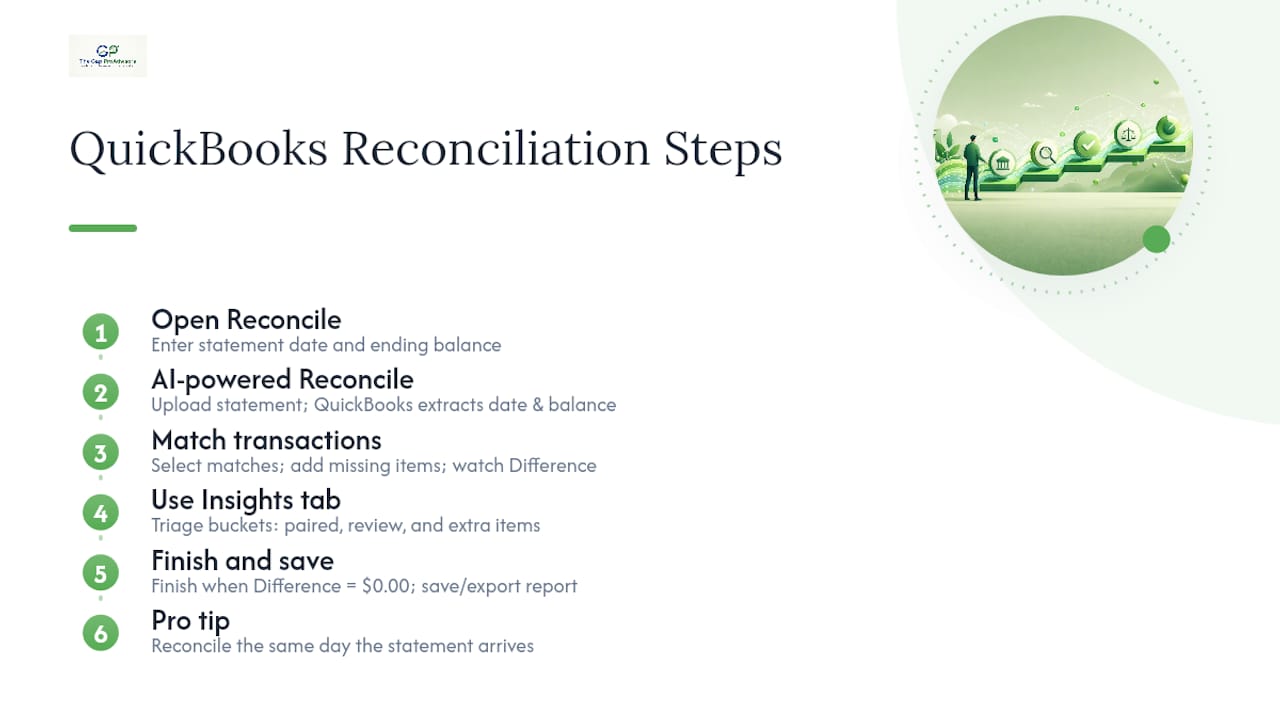
2. Try AI Powered Reconciliation if your plan supports it. Instead of typing in numbers by hand, you can upload a PDF or image of your statement and let QuickBooks extract the ending balance and date automatically. This feature currently runs on QuickBooks Online Plus, QuickBooks Online Advanced, and Intuit Enterprise Suite. It won't help if you're on Simple Start, so check your plan before you count on it.
According to Insightful Accountant's coverage of the tool, the AI-powered reconcile companion reads the uploaded statement, extracts the details, and hands you a pre-filled reconciliation screen ready for review.
3. Match and check transactions one by one. QuickBooks lists every transaction posted to the account for the period. Compare each one against your statement. When it matches, select it. Watch the Cleared Balance update as you go, and keep an eye on the Difference field in the top corner. Your goal is to walk that number down to exactly $0.00.
If a transaction is missing while you're working through this list, don't skip it and hope it evens out. Add it directly from the reconciliation screen or open a new tab to record it, then come back and check it off. Filtering the transaction list by date, type, or amount helps when you're staring down a long statement with dozens of line items.
4. Use the Insights tab to triage automated matches. After an AI-assisted pass, QuickBooks separates transactions into three buckets: paired matches, items that need your review, and extra transactions sitting in QuickBooks with nothing to match on the statement side. Work through the review pile before you finish.
5. Finish and save the reconciliation. Once Difference shows $0.00, select Finish. QuickBooks generates a reconciliation report you can view, print, or export as a PDF for your records. That report becomes your reference point if a discrepancy shows up next month.

The entire process moves faster than it sounds once you've done it two or three times. Most small business owners reconcile a typical checking account with a moderate number of transactions in a short amount of time.
Pro Tip: Reconcile the same day your statement arrives, not at the end of the month when three statements have piled up. Fresh transactions are easier to remember and match correctly.
Why the Difference Isn't $0.00 (and How to Fix It)
A nonzero Difference almost always traces back to one of five causes, and none of them require guesswork if you know where to look.
- Wrong beginning or ending balance. Retype both numbers directly from the statement. A single transposed digit throws off the whole reconciliation.
- Duplicate transactions. Bank feeds sometimes import the same charge twice, especially around bank holidays or batch processing delays.
- Missing transactions. A transaction that hit your bank account but never got entered into QuickBooks will always leave a gap.
- Wrong dates. A transaction dated one day outside the statement period won't show up where you expect it, even though the amount is correct.
- Changes to already-reconciled transactions. Someone edited or deleted a transaction that was previously cleared, which throws off every reconciliation after it.
QuickBooks gives you real tools to hunt these down instead of guessing. Run the Reconciliation Discrepancy Report to see exactly which transactions were changed after a prior reconciliation closed. Pull up the Previous Reconciliation report to compare this period against the last one that balanced cleanly. If you're troubleshooting a checking account, the Missing Checks Report flags gaps in check numbering that often point to unentered transactions. QuickBooks' own guidance on fixing end-of-reconciliation issues walks through using these reports before touching anything else.
Don't force the Difference to zero with a blind adjusting entry just to close out the month. An adjustment covers up the real error instead of fixing it, and it leaves a hole in your audit trail that gets harder to explain every month it goes unresolved.
Fix what you find instead. Correct a mistyped date or amount, add the transaction that's missing, or unreconcile an item that was cleared by mistake. An adjusting entry belongs at the bottom of your troubleshooting list, used only when you've confirmed there's a genuine, unexplainable gap and you document exactly why.
How to Undo or Unreconcile a Transaction in QuickBooks
Sometimes the fix isn't finding a new transaction. It's reversing one that was cleared incorrectly. QuickBooks gives you two paths depending on the scope of the problem.
- Unreconcile a single transaction. Open the account register, find the transaction, and locate the reconciliation status column (it shows R for reconciled, C for cleared, or blank for neither). Click the status and cycle it back, typically from R to C or blank, then save your change.
- Undo an entire reconciliation with QuickBooks Online Accountant. If the whole period needs a redo, an accountant with QBOA access can go to History by Account, find the reconciliation, select Action, then Undo.
Both options carry real consequences, so use them with intention. Unreconciling one transaction shifts the beginning balance for your next reconciliation. Undoing an entire period does the same thing on a larger scale, and it deletes any attachments tied to that reconciliation. Download copies of anything attached before you undo.
When to Bring in a Bookkeeper for QuickBooks Cleanup
Some reconciliation problems are a five-minute fix. Others are a sign the books need real attention. If your opening balances don't match across two or three consecutive months, or your reconciliation errors have been piling up for a while, that's usually a bigger job than a single sitting can solve.
Watch for these signs that it's time to call in help:
- Opening balances that haven't matched the bank for more than one statement period.
- Hundreds of uncoded or uncategorized transactions sitting in the register.
- A reconciliation that hasn't balanced in three months or longer.
- Reports that need to look clean for a lender, investor, or tax filing deadline.
A proper cleanup engagement rebuilds your opening balances, works through duplicates, unreconciles and re-reconciles the affected months, and hands you accurate statements ready for tax preparation or lender review. Mygappro's QuickBooks Cleanup & Catch-Up service handles exactly this kind of backlog for small businesses that got behind.
What we see over and over again
The same three mistakes show up in almost every set of books we're asked to fix: opening balances entered incorrectly when the account was first set up, duplicate bank feed transactions nobody caught for months, and reconciliations skipped entirely once things got busy. Monthly reconciliation isn't a formality. It's what keeps your tax prep clean and gives you an honest read on your cash position year-round.
Get Your Books Back on Track With Mygappro
If your reconciliations have been off for a while, the fastest way forward usually isn't another hour wrestling with the Difference field. It's having someone rebuild the opening balance, clear the duplicates, and get every past month reconciled correctly, so you're not starting from a broken foundation every time. Mygappro's remote bookkeeping team handles exactly this kind of backlog for small business owners across the country, without requiring you to drive anywhere or sit through an in-office meeting.

Whether you need a one-time cleanup or want reconciliation handled every month going forward, Mygappro's remote bookkeeping services cover both. A cleanup engagement fixes the opening balance, removes duplicate transactions, and reconciles the backlog so your books are accurate before your next tax filing. If you're not sure how bad the damage is, start with a look at your current QuickBooks setup and get a clear answer on what it will take to fix it.
Sources
FAQ
How do I do a bank reconciliation in QuickBooks?
Go to Accounting, then Reconcile, choose your account, enter the statement ending date and balance, and check off transactions until the Difference shows $0.00, then select Finish.
Does QuickBooks automatically do bank reconciliation?
Not entirely. QuickBooks Online's AI Powered Reconciliation can extract statement details from an upload and suggest matches, but you still review and confirm transactions before finishing, and the feature is limited to QuickBooks Online Plus, Advanced, and Intuit Enterprise Suite.
What are the steps to bank reconciliation?
The core sequence is: gather your statement, confirm your opening balance matches, enter the ending date and balance in QuickBooks, match transactions one by one, resolve any Difference above $0.00, then finish and save the reconciliation report.
Does QuickBooks have a reconciliation tool?
Yes. QuickBooks Online's built-in Reconcile feature, found under Accounting, handles the entire matching workflow and generates a saved reconciliation report once the Difference reaches $0.00.
What happens if my reconciliation discrepancy in QuickBooks Online won't go away?
Run the Reconciliation Discrepancy Report and Previous Reconciliation report to find the specific transaction causing the gap rather than forcing an adjusting entry, which can hide the real error and weaken your audit trail.