
Undeposited Funds is a temporary holding account you use only when you need to group multiple customer payments into one bank deposit. If you deposit payments one at a time, or your bank feed and payment processor already post transactions directly, skip it. The rest of this guide shows you exactly how to work with it, and how to clean it up when it gets out of hand.
TL;DR:
- Most Undeposited Funds issues stem from duplicate deposits, payments not batched into deposits, or connected apps pushing transactions twice.
- The account should be used only when batching multiple payments before depositing, not for single payments or when bank feeds import transactions automatically.
- Regularly reconciling the account by matching deposits to bank statements prevents the balance from becoming bloated or mismatched.
- Manual cleanup is feasible for small backlogs, but multi-year issues typically require professional assistance to ensure proper workflow correction.
- Changing deposit workflows and avoiding habitually using Undeposited Funds for simple one-payment deposits reduces the risk of future reconciliation problems.
Table of Contents
- What Is the QBO Undeposited Funds Account?
- When Should You Use Undeposited Funds (and When Should You Skip It)?
- How to Record Payments and Make a Bank Deposit in QuickBooks
- Why Does Undeposited Funds Get Messy, and How Do You Fix It?
- Two Ways to Clean Up a Bloated Undeposited Funds Balance
- When Should You Bring in a Professional Bookkeeper?
- Why Undeposited Funds Trips Up More Businesses Than It Should
- Get Your QuickBooks File Cleaned Up for Good
- Sources
- FAQ
What Is the QBO Undeposited Funds Account?
Think of Undeposited Funds as a lockbox sitting on your desk, not your bank vault. When you receive a customer payment in QuickBooks, it lands in this account first instead of hitting your bank balance right away. QuickBooks does this on purpose: it lets you group several payments together and match them to the single lump-sum deposit that actually shows up on your bank statement.
That grouping is the whole point. Banks rarely post ten separate line items when you hand a teller ten checks. They post one deposit total. Undeposited Funds bridges that gap between the individual payments you recorded and the single number your bank reports, which is what makes reconciliation possible without a headache.
Here's the misconception that trips up a lot of small business owners:
- Undeposited Funds is not a bank account, and it doesn't earn or hold interest.
- It's not a cash-on-hand tracker either. QuickBooks treats it as a system-created holding spot, nothing more.
- Money sitting there hasn't disappeared. It's simply waiting for you to complete the deposit step.
When Should You Use Undeposited Funds (and When Should You Skip It)?
Use it when you physically deposit multiple payments as one bank transaction and need QuickBooks to match that single amount. A landscaping company that collects five checks Friday afternoon and drops them at the bank together needs Undeposited Funds. Without it, QuickBooks would show five separate deposits, none of which match what actually hit the bank.
Skip it when your workflow doesn't create that batching problem. You generally don't need the account when you deposit one payment at a time, when your bank feed already imports transactions automatically, or when you use QuickBooks Payments, since those processors often post directly to your bank register. Adding an extra holding step there just creates more reconciling work later.
Run through this checklist before you record your next payment:
- Will this payment be deposited alone, or combined with others?
- Does your bank feed already capture this transaction automatically?
- Is this processed through an integrated payment system that posts directly?
- If you answered "combined" to question one and "no" to the others, route it through Undeposited Funds.
Pro Tip: If you're not sure which workflow your business uses, check your bank register for the last week. If deposits there match your invoices one-for-one, you're probably already bypassing Undeposited Funds, and that's fine.
How to Record Payments and Make a Bank Deposit in QuickBooks
The mechanics differ slightly between QuickBooks Online and Desktop, but the logic is identical: payments collect in the holding account, then you release them together as one bank deposit.
In QuickBooks Online:
- Record the payment using Receive Payment (for an invoice) or Sales Receipt (for a walk-up sale), and set the deposit destination to Undeposited Funds.
- Repeat for every payment you plan to deposit together.
- Open Bank Deposit from the New menu. Every transaction sitting in Undeposited Funds automatically appears here for selection.
- Check the box next to each payment that's part of this specific bank trip.
- Confirm the total at the bottom matches your deposit slip exactly before saving.
In QuickBooks Desktop:
- Use Receive Payments or Enter Sales Receipts, same as QBO, and let the payment route to Undeposited Funds by default.
- Go to Banking, then Make Deposits. Desktop pulls up the Payments to Deposit window automatically.
- Select the payments belonging to this deposit and click OK.
- Verify the deposit total against your physical or digital bank slip.
- If you'd rather bypass Undeposited Funds entirely, go to Edit, then Preferences, then Sales & Customers, and change the default deposit account. Most small businesses with simple, single-payment deposits do this.
Before you save any deposit, hold your deposit slip next to the Bank Deposit screen and compare line by line. A mismatch here, even by a few dollars, is the number one reason bookkeepers spend hours untangling Undeposited Funds months later.
Why Does Undeposited Funds Get Messy, and How Do You Fix It?
Most Undeposited Funds problems trace back to one of a few repeat offenders. A bloated balance is usually caused by duplicate deposit entries, payments that never got batched into a deposit, or friction from connected apps like Square or Stripe pushing transactions in twice.
If a payment seems to be missing when you open the Bank Deposit window, don't assume it vanished. Check your existing deposit records first, since the payment was likely already included in an earlier deposit, or it was never assigned to Undeposited Funds in the first place.
A few other common snags and fixes:
- Deposit still shows in the account after you recorded it. Refresh the report and confirm you actually saved the Bank Deposit rather than just previewing it.
- Deposit total doesn't match your bank statement. Edit the deposit itself and adjust which payments are included instead of deleting it. Deleting breaks the link to every invoice tied to that deposit and creates more cleanup work than it solves.
- Imported transactions from Square or Stripe duplicate manually entered payments. Check your app connection settings and decide whether the app or QuickBooks should own the deposit workflow, then stick with one source consistently.
Two Ways to Clean Up a Bloated Undeposited Funds Balance
Before touching anything, pull an Undeposited Funds report from your Chart of Accounts. The default view covers 90 days, but you can widen the date range to catch older stragglers. Compare that list against your actual bank statements before you change a single entry, and export a backup copy of your company file just in case.
Once you've got that report in hand, pick one of two approaches:
- Transaction-by-transaction cleanup. Go through each line, match it to the corresponding bank deposit, and correct or clear it individually. This is the right call for recent issues, small backlogs, or any business handling trust accounting (law firms, property managers) where every dollar needs a clean audit trail.
- Bulk cleanup. Group old, clearly duplicate, or long-stale entries and resolve them in batches rather than one by one. This works better for a multi-year backlog where transaction-by-transaction review would take weeks. Reconcile your bank account immediately afterward to confirm nothing broke loose.
Pro Tip: If your Undeposited Funds balance is more than a few months old and doesn't match anything on your bank statement, don't guess. A wrong bulk edit can throw off your entire reconciliation history, not just the current period.
When Should You Bring in a Professional Bookkeeper?
Some Undeposited Funds problems are a fifteen-minute fix. Others are a symptom of something bigger. If you're seeing the same reconciliation errors month after month, if you handle trust or client funds where accuracy isn't optional, or if your Undeposited Funds report goes back years instead of weeks, that's your signal to stop DIY-ing it.
A typical cleanup engagement starts with a full reconciliation of every open item in the account, then corrects mismatched deposits, rebuilds the payment workflow so the problem doesn't return, and sets up ongoing monitoring so you catch issues within days instead of years. That last part matters most. Fixing the backlog once and walking away just guarantees you'll be back here in twelve months.
Mygappro's team works through remote bookkeeping engagements with small business owners across the country, and Undeposited Funds cleanup is one of the most common requests we see from new clients who inherited a messy file from a previous bookkeeper or DIY setup.
Why Undeposited Funds Trips Up More Businesses Than It Should
Most of the advice floating around treats Undeposited Funds like a bug to route around instead of a tool with a narrow, specific job. That framing is backwards. The account works exactly as designed for anyone who batches payments before depositing them. The real failure point isn't the account itself. It's businesses using it out of habit, long after their workflow changed to bank feeds or integrated processors that make it redundant.
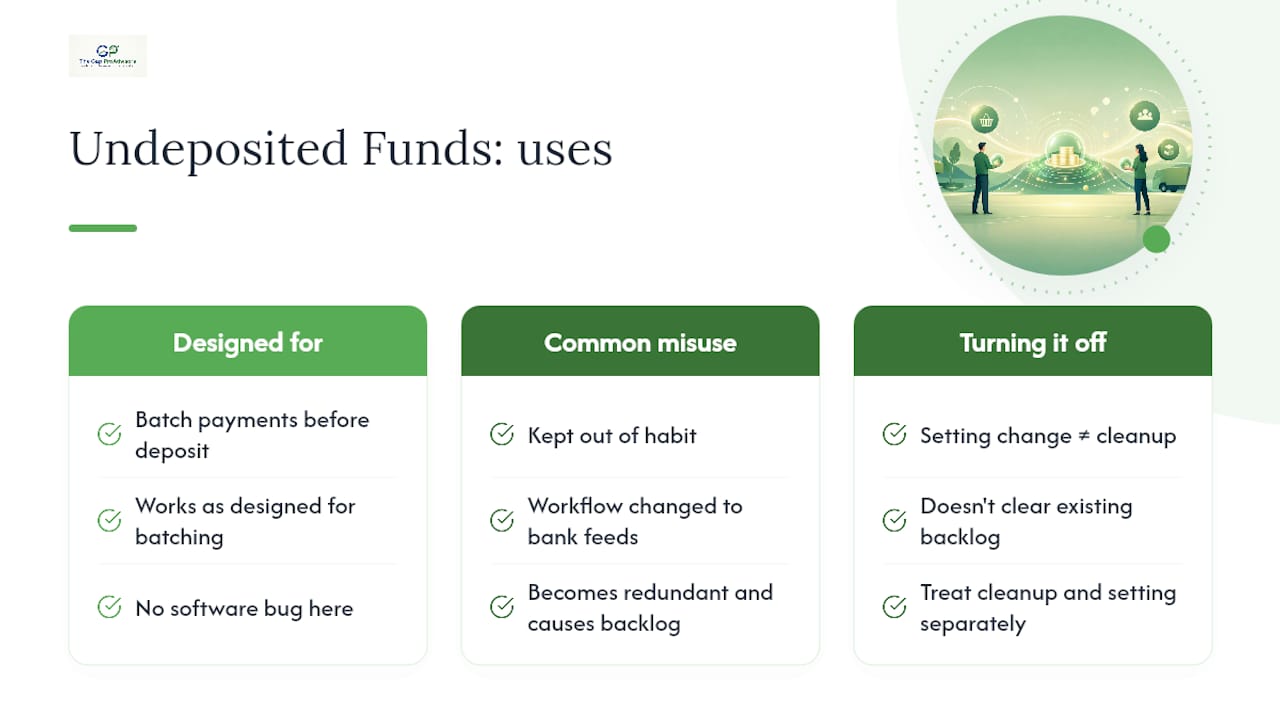
The conventional advice to "just turn it off" also misses something. Turning off the default doesn't fix an existing backlog, and plenty of business owners flip that setting while a mess of unmatched payments still sits in the account from years prior. The setting change and the cleanup are two separate jobs.
If you take one thing from this guide, prioritize the decision checklist over the troubleshooting steps. Most of the reconciliation pain you'll ever deal with in QuickBooks traces back to using the wrong workflow for your deposit pattern, not a software glitch. Get that decision right upfront, and you'll rarely need the cleanup playbook at all.
— Angela
Get Your QuickBooks File Cleaned Up for Good
Mygappro fixes the specific problem this article walks through, minus the trial and error. Instead of spending a weekend combing through months of unmatched deposits, our team runs a full reconciliation, corrects every mismatched entry, and rebuilds your deposit workflow so the same backlog doesn't reappear next quarter.

That's the difference between a one-time fix and an actual solution. Plenty of business owners clean up their Undeposited Funds balance once, only to find it bloated again six months later because nobody addressed the workflow that caused it. Mygappro's bookkeeping cleanup service handles both pieces: the historical mess and the ongoing habit that created it, with monthly monitoring built into every engagement afterward.
If you're staring at a QuickBooks file with years of unmatched deposits, or you're just not sure your current setup is even using Undeposited Funds correctly, start with a free QuickBooks Online health check. It's the fastest way to find out exactly what's wrong before committing to a full cleanup.
FAQ
How Do I Find Undeposited Funds in QBO?
Open your Chart of Accounts, locate Undeposited Funds, and click "Run report" to see every payment currently sitting there. You can also access it directly through the Bank Deposit screen, which pulls the same list automatically.
How Do I Clear Up Undeposited Funds in QuickBooks Online?
Pull an Undeposited Funds report first, compare it against your bank statements, then resolve entries either one at a time for accuracy or in batches for speed on older backlogs. Reconcile your account immediately after to confirm the fix held.
Can You Turn Off Undeposited Funds in QuickBooks Online?
Yes, in QuickBooks Desktop you can change the default deposit account under Preferences so new payments bypass Undeposited Funds entirely. In QBO, you choose the deposit destination each time you record a payment, so there's no single global switch, but you can consistently select your bank account instead.
What Causes Undeposited Funds Problems in QuickBooks?
The most common causes are duplicate deposit entries, payments left in the account without ever being included in a bank deposit, and connected apps like Square or Stripe posting transactions that conflict with manually entered payments. Checking existing deposit records before troubleshooting missing payments resolves most of these on the first pass.
Should I Hire Someone to Fix My Undeposited Funds Balance?
If you're seeing recurring reconciliation errors, managing trust or client funds, or facing a backlog that spans multiple years, a professional cleanup is worth the investment over continued DIY attempts. Mygappro's remote bookkeeping team handles this exact scenario for small business owners nationwide.