
Yes, you can migrate your QuickBooks Desktop file to QuickBooks Online. Most small businesses should use the built-in Desktop migration tool or the online upload option, while accounting firms managing several clients should use the Accountant Batch Migration tool. Larger files, active payroll, or heavy inventory tracking are good reasons to bring in a QuickBooks ProAdvisor before you start.
TL;DR:
- The built-in migration tools work best for small, straightforward files, while large or complex files may require professional help, especially with inventory or payroll.
- Proper preparation, such as reconciling accounts and updating Desktop, reduces errors and messy data transfers during migration.
- Core data like lists and balances move automatically, but payroll details, custom templates, and bank feed connections require manual re-entry post-migration.
- Verifying data accuracy by comparing reports and reconciling key balances is essential before fully relying on QuickBooks Online after migration.
- Large, complex files with extensive payroll, inventory, or multi-entity setups benefit most from expert-managed migrations to avoid hidden issues and data loss.
Table of Contents
- Which Migration Method Should You Choose?
- Pre-Migration Checklist: What to Do Before You Start
- How Do You Migrate Using the QuickBooks Desktop Tool?
- Online Migration Tool vs. Accountant Batch Migration
- What Transfers to QuickBooks Online and What Doesn't?
- After-Migration Verification: What to Check First
- Fixing Common Conversion Errors
- When to Hire a Pro for Your Migration
- Setting Up User Roles and Permissions After Migration
- Helping Your Team Adjust to QuickBooks Online
- The Real Migration Risk Nobody Talks About
- Book a Migration or QBO Health Check with Mygappro
- Authoritative Migration Resources
- Sources
- FAQ
Which Migration Method Should You Choose?
The right path depends on your file size, how many clients you manage, and how much payroll or inventory complexity you're carrying.
- QuickBooks Desktop migration tool: best if you already have Desktop installed and your file is under the size and target limits.
- Online migration tool: works if you don't have Desktop access but have a saved .QBW, .QBM, or .QBB backup.
- Accountant Batch Migration tool: built for firms moving up to 50 client files at once.
- Professional migration help: worth it when your file has years of inventory history, complex payroll liabilities, or multiple entities.
Pro Tip: Run Ctrl+1 (or F2) on your Desktop file before deciding anything. That window shows your total targets count, and it tells you in thirty seconds whether a DIY migration is realistic.
Pre-Migration Checklist: What to Do Before You Start
Skipping prep work is the single biggest reason migrations go sideways. Work through this list in order:
- Create a full backup and a portable company file as a second safety net.
- Update QuickBooks Desktop to the latest release before exporting anything.
- Check your total targets and file size using Ctrl+1 or F2. Files that exceed Intuit's recommended thresholds risk incomplete or inaccurate transfers.
- Reconcile all bank and credit card accounts and clean up miscategorized transactions.
- Save or print your payroll summary reports and any Sales Tax Liability reports, since these details often need manual re-entry.
- Switch Desktop to single-user mode. The export tool won't run in multi-user mode.
- Confirm you have admin login credentials for both your Desktop file and your new QuickBooks Online company.
A messy file goes in messy and comes out messier. Clean data before migration saves hours of reconciliation afterward.
How Do You Migrate Using the QuickBooks Desktop Tool?
Sign in to your Desktop file as the admin user, then go to the Company menu and select Export Company File to QuickBooks Online. QuickBooks walks you through a personalized checklist before you confirm the export.
During setup, you'll choose between two data options:
- Bring all data: transfers your full transaction history, lists, and balances. This is the default choice for most active small businesses.
- Lists and balances only: moves your chart of accounts, customers, vendors, and opening balances, but leaves historical transaction detail in Desktop for reference. This partial approach makes sense when your file exceeds size or target limits and you mainly need clean opening balances going forward.
Next, you'll select the destination QuickBooks Online company. If that company already has data in it, the export will replace everything currently there, and this step cannot be undone. Double-check you're pointing at the right company before confirming.
The export itself typically runs within an hour for average-sized files, though larger files take longer. Intuit sends a confirmation email when the migration finishes, and you should not close Desktop or make new entries in the source file until you get that confirmation.
Online Migration Tool vs. Accountant Batch Migration
Not every migration starts inside Desktop. Two other paths exist depending on your setup.
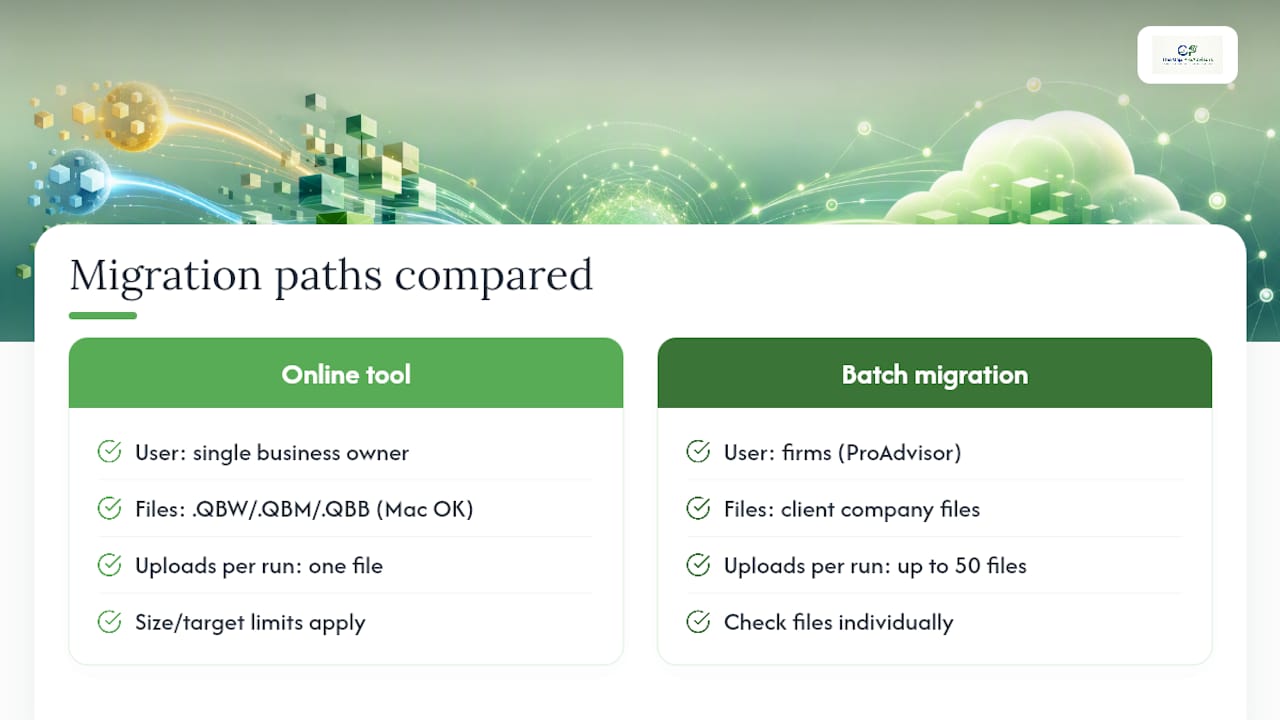
The online migration tool works if you don't have Desktop installed on your current machine but have a saved backup file. It accepts .QBW, .QBM, and .QBB files, including Mac company files that were saved as a Windows-compatible .QBB backup. You upload one file at a time, and the same size and target limits apply.
Accountant Batch Migration is built for firms, not single-business owners. It lets a ProAdvisor move up to 50 client company files in one batch process instead of exporting each one manually. Firms still need to check each file's size and target count individually, since one oversized client file can cause discrepancies that affect the whole batch run.
If a file fails either path because it's too large or running an outdated Desktop version, falling back to a manual "lists and balances" export or a partial migration usually resolves it.
What Transfers to QuickBooks Online and What Doesn't?
Most core accounting data moves cleanly, but a few categories consistently get left behind or need adjustment.
What transfers: your chart of accounts, customer and vendor lists, item lists, open transactions, and account balances. Some accounts may need reclassification once you're in QuickBooks Online, since the two products don't always map account types identically.
What doesn't transfer: payroll item details and year-to-date payroll numbers generally require manual re-entry, along with certain company settings, custom invoice or estimate templates, and any saved bank credential connections. You'll need to reconnect each bank and credit card feed from scratch.
Inventory deserves special attention. QuickBooks Online recalculates inventory cost using the FIFO method regardless of what costing method Desktop used. That change can shift your cost of goods sold. Practitioners generally recommend setting your inventory "as of" date right after your last filed tax period, which limits how much of your recalculated inventory falls inside a period you'd need to amend on Form 3115.
After-Migration Verification: What to Check First
Don't assume the migration finished cleanly just because you got a confirmation email. Run this verification sequence before you rely on the new file for anything.
- Pull Profit & Loss and Balance Sheet (All Dates) in both Desktop and QuickBooks Online and compare the totals line by line.
- Set your accounting method to accrual in QuickBooks Online so the comparison matches Desktop's default reporting basis.
- Check Accounts Receivable and Undeposited Funds for stray balances, and confirm customer balances match what you had in Desktop.
- Look for invoices that lost their link to a payment, since these show up as unapplied credits or incorrect open balances.
- Review the detail type assigned to each account. Migrated accounts sometimes land in generic categories that need correcting before you close your books.
- Reconnect your bank and credit card feeds, then finish setting up payroll if you use it.
Pro Tip: Compare net income, not just the bottom-line totals. A matching net income figure with different account balances underneath usually means something got reclassified, not lost, which is a much smaller fix.
Fixing Common Conversion Errors
A few conversion problems show up often enough that they're worth knowing before you hit them.
- Customer balances look wrong: this usually happens when Desktop applied payments to invoices through journal entries. Turning on auto-apply credits in QuickBooks Online or manually relinking the payment to the invoice typically resolves it.
- Invoices converted to journal entries: some older or non-standard transaction types convert as journal entries instead of their original form. You'll need to recreate these manually if you need the original document type for reporting or customer-facing records.
- The export fails partway through: go back to Desktop, run File > Utilities > Verify Data, then Rebuild Data if errors appear, and retry the export.
- File still won't export: consider a partial "lists and balances" migration instead of forcing a full data transfer.
If errors persist after these fixes, contact Intuit support directly, or bring in a professional for a full QuickBooks cleanup before you trust the file for tax filing or client reporting.
When to Hire a Pro for Your Migration
Large client files, active inventory with tax implications, or multi-state payroll are the situations where a managed migration pays for itself. Mygappro handles QuickBooks cleanup, payroll setup, and a free QBO health check so you're not troubleshooting broken links alone. Come prepared with your latest backup and payroll reports, and expect a clean, reconciled file on the other side.
Setting Up User Roles and Permissions After Migration
Migration doesn't carry over your Desktop user permissions automatically, so this is a step people forget until someone has access they shouldn't. QuickBooks Online uses a different permission structure than Desktop, built around roles rather than individual feature toggles.
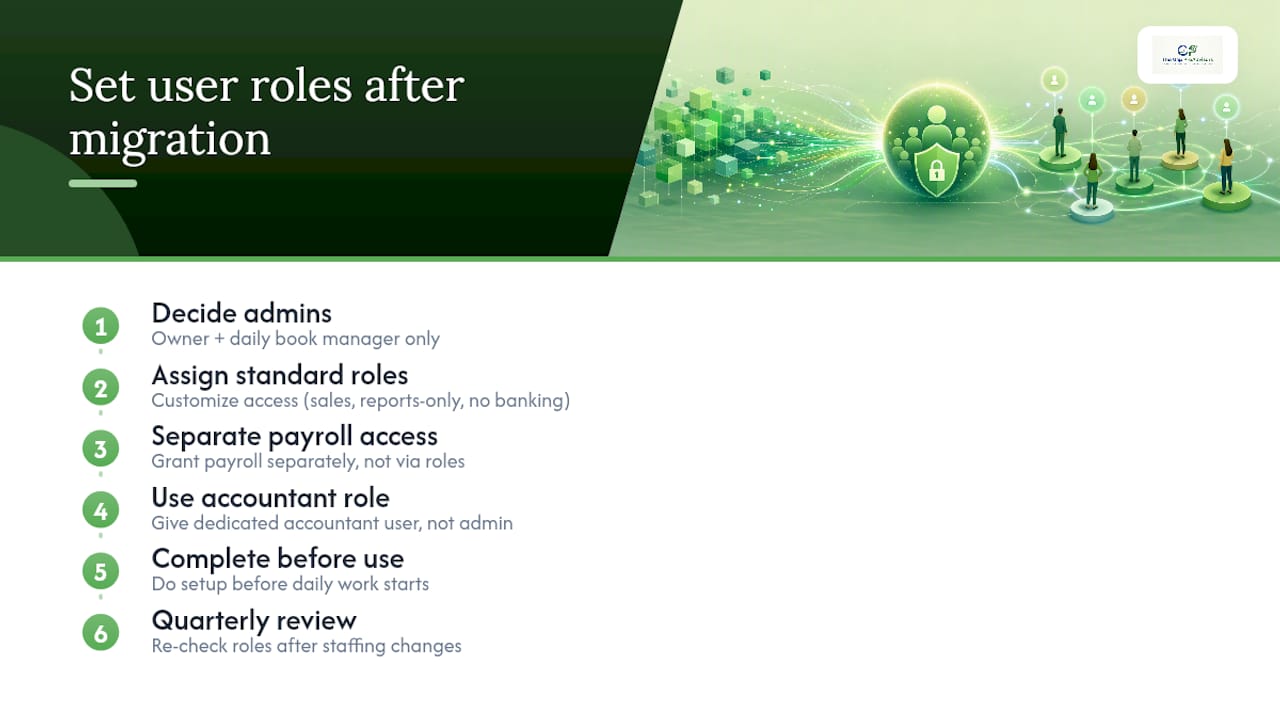
Start by deciding who needs admin access. This should be a short list, typically the owner and whoever manages the books day to day. Admins can see everything, including payroll and banking details, so don't hand this out by default.
For everyone else, QuickBooks Online offers standard user roles you can customize: some staff members need access to sales and customer data but nothing on the banking side, while others might need reports-only access without the ability to edit transactions. If you use payroll, that access is controlled separately, so a bookkeeper doesn't automatically see employee pay rates just because they can enter bills.
Set up your accountant or bookkeeping firm with the dedicated accountant user role rather than a standard admin login. It gives them the access they need for reconciliations and reporting without counting against your paid user limit, and it keeps a clear audit trail of who made which changes.
Go through this setup before you start using the file for daily work, not after. Retrofitting permissions once staff have already been working in the wrong role usually means undoing changes made with access they shouldn't have had. Review the role list once a quarter, especially after any staffing change.
Helping Your Team Adjust to QuickBooks Online
The software isn't the hard part of this transition. Getting your team to stop reaching for Desktop habits is.
Intuit recommends installing the QuickBooks Online app for Windows or Mac rather than relying purely on the browser version. It supports keyboard shortcuts and multiple open tabs, which closes most of the gap for staff who built years of muscle memory around Desktop's interface.
Give your team a short, hands-on runthrough of the tasks they do most: entering bills, creating invoices, or reconciling accounts. A 30-minute walkthrough focused on their actual daily tasks beats a generic training video every time, because it shows them exactly where their old workflow now lives.
Expect a rough week or two. Menus are in different places, some reports look different, and muscle memory takes time to reset. Set that expectation up front so staff don't assume something's broken when it's just unfamiliar.
If your team relies on outside integrations, like field service scheduling tools or time tracking apps, check those connections early. Businesses using field service software should verify their QuickBooks integration reconnects properly, since migration breaks these links and they need to be rebuilt inside the new company file.
Keep Desktop open in read-only mode for the first month as a reference point. Staff can check old reports without touching the live file, which reduces the anxiety of "did that number actually transfer correctly."
The Real Migration Risk Nobody Talks About
Most migration guides focus on the mechanics: click here, select this, confirm that. What they underplay is the judgment call buried inside the process. The "bring all data" versus "lists and balances" decision looks like a simple checkbox, but it determines whether your historical reporting stays intact or gets truncated at the migration date. Get that choice wrong on a file with three years of job costing history, and you won't find out until you need that data for a loan application or an audit.
The conventional advice treats migration as a weekend DIY project for everyone. It isn't. A ten-employee retail business with clean books and no inventory can reasonably self-migrate in an afternoon. A contractor with WIP schedules, a payroll history spanning multiple states, and inventory that's never been properly costed is a different animal entirely, and the FIFO recalculation alone can quietly shift your tax picture without anyone noticing until filing season.
My honest read: the checklist matters, but the file assessment before you touch any export button matters more. Know your target count, know your inventory complexity, and know your payroll liability before you decide who runs this migration.
— Angela
Book a Migration or QBO Health Check with Mygappro
If any part of this process felt like more than a weekend project, that's a reasonable read on your situation, not a sign you did something wrong. Mygappro handles managed migrations, QuickBooks cleanup, payroll setup, and ongoing bookkeeping subscriptions for small business owners who'd rather have a clean file on day one than spend weeks troubleshooting broken customer balances.
Our team reviews your Desktop file, flags anything that needs cleanup before export, and handles the technical steps so nothing gets replaced by mistake. If you're already migrated and something looks off, the same team can untangle it after the fact. Start with a free QBO health check to see exactly where your file stands, or head straight to our remote bookkeeping services page to request a migration quote and get a real timeline for your file.
Authoritative Migration Resources
For the official step-by-step process, see Intuit's Desktop-to-Online migration guide and Accountant Batch Migration tool documentation. Note that qualifying Desktop releases retain 12 months of view-only access after you cancel your Desktop subscription.
Sources
- Move QuickBooks Desktop files to QuickBooks Online with the Accountant Batch Migration Tool
- QuickBooks 2023 Desktop users can option for 1-year view-only mode
FAQ
What Doesn't Migrate to QuickBooks Online?
Payroll item detail and year-to-date payroll numbers, certain company settings, custom templates, and saved bank credential connections generally don't transfer and need manual re-entry after migration.
What Should You Expect When You Switch From QuickBooks Desktop to QuickBooks Online?
Expect your lists, transactions, and balances to move over, but plan on reconnecting bank feeds, rebuilding payroll setup, and verifying reports since QuickBooks Online recalculates inventory cost using FIFO regardless of your prior costing method.
Is QuickBooks Desktop Going Away in 2026?
Intuit has scaled back new Desktop subscription sales in the past, though existing users on qualifying releases retain access, including 12 months of view-only data access after canceling a Desktop subscription. Check Intuit's current product pages for the latest availability in your situation.
Why Do Some Accountants Prefer QuickBooks Desktop Over QuickBooks Online?
Some accountants find certain advanced reporting and batch-editing features work faster in Desktop's native interface, though QuickBooks Online has closed much of that gap, and tools like Accountant Batch Migration now make managing multiple client files in QuickBooks Online more efficient for firms.